This guide walks through one discovery from start to finish: create a project from the files you already have, review what the AI drafts, work through the ten stages and export the report. Every screenshot comes from the real app. The project, Fieldwise, is invented: a field service scheduling app for a heating and plumbing company, the same one you can open in the example report.
1. Create a project from your files
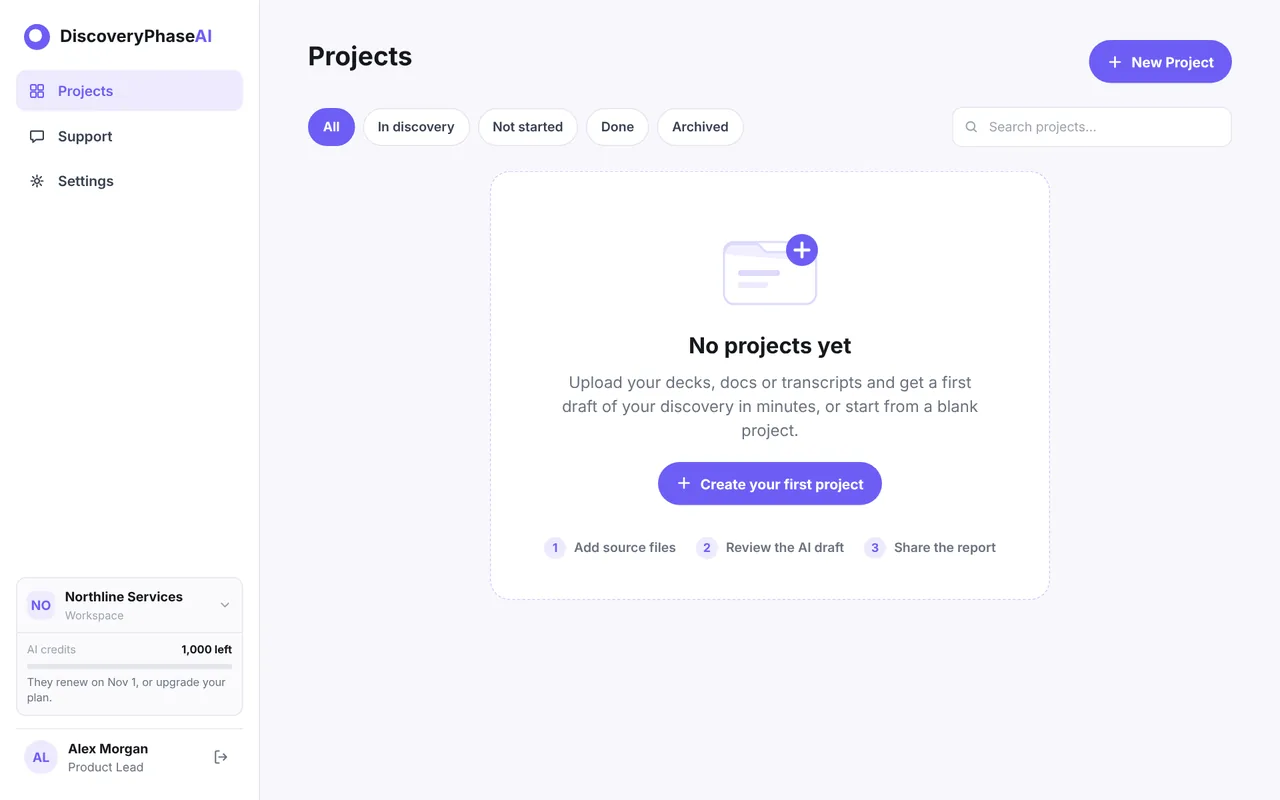
Sign up (the Free plan needs no card) and you land on Projects. Click New Project.
Give the project a name, a one-line description and a discovery deadline. Then add what you already have: a brief, a slide deck, meeting notes or a call transcript. PDF, Word, PowerPoint, Excel, images and text files work.
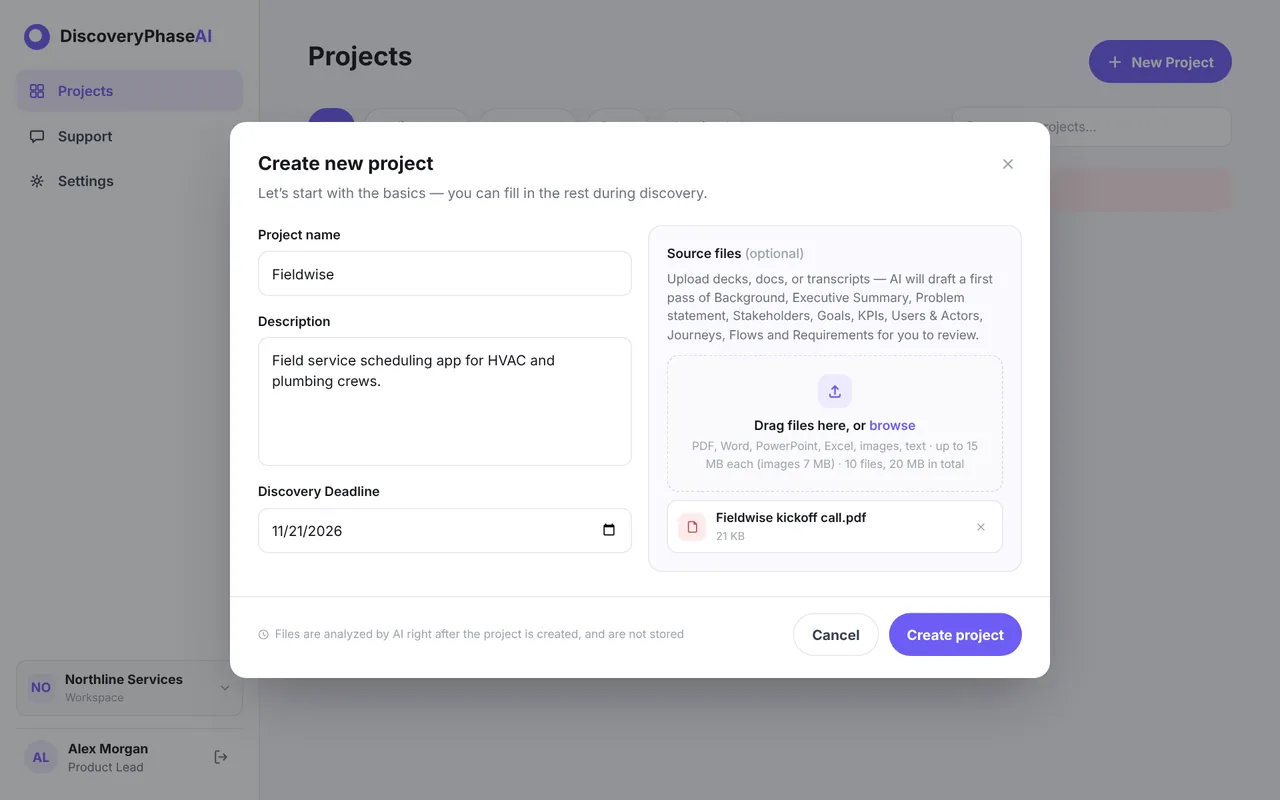
- Files are read by the AI right after you click Create project, and are not stored afterwards.
- The Free plan takes one file per project, paid plans up to ten.
- No files? Create the project empty and fill the stages by hand or with the AI chat.
2. Review what the AI drafted
After a short wait the AI shows what it found: stakeholders, the Background, Executive Summary and Problem statement, goals with success metrics, KPIs, users and actors, journeys, flows and requirements.
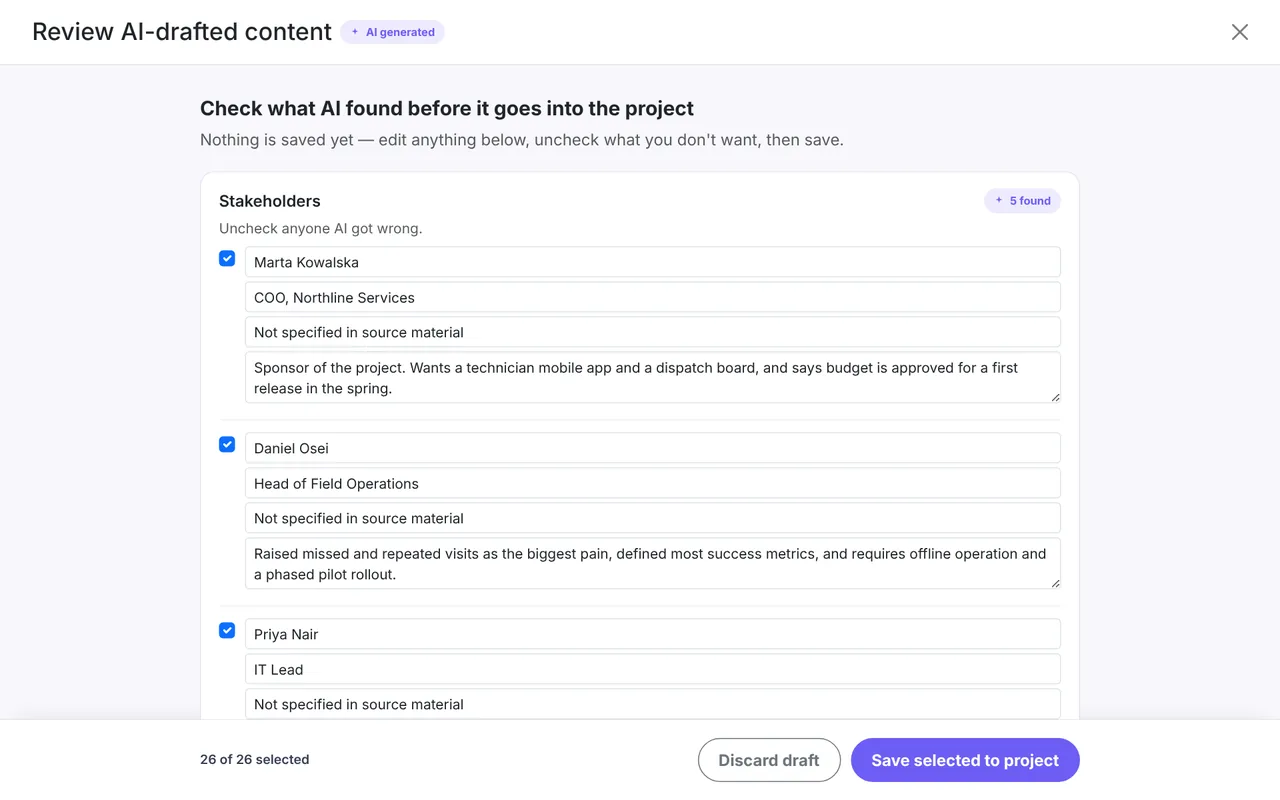
Every item has a checkbox. Fix a name or a sentence in place, uncheck anything the AI got wrong and click Save selected to project. Each saved item lands in its stage, and the stage turns In Progress.
3. The project page and the ten stages
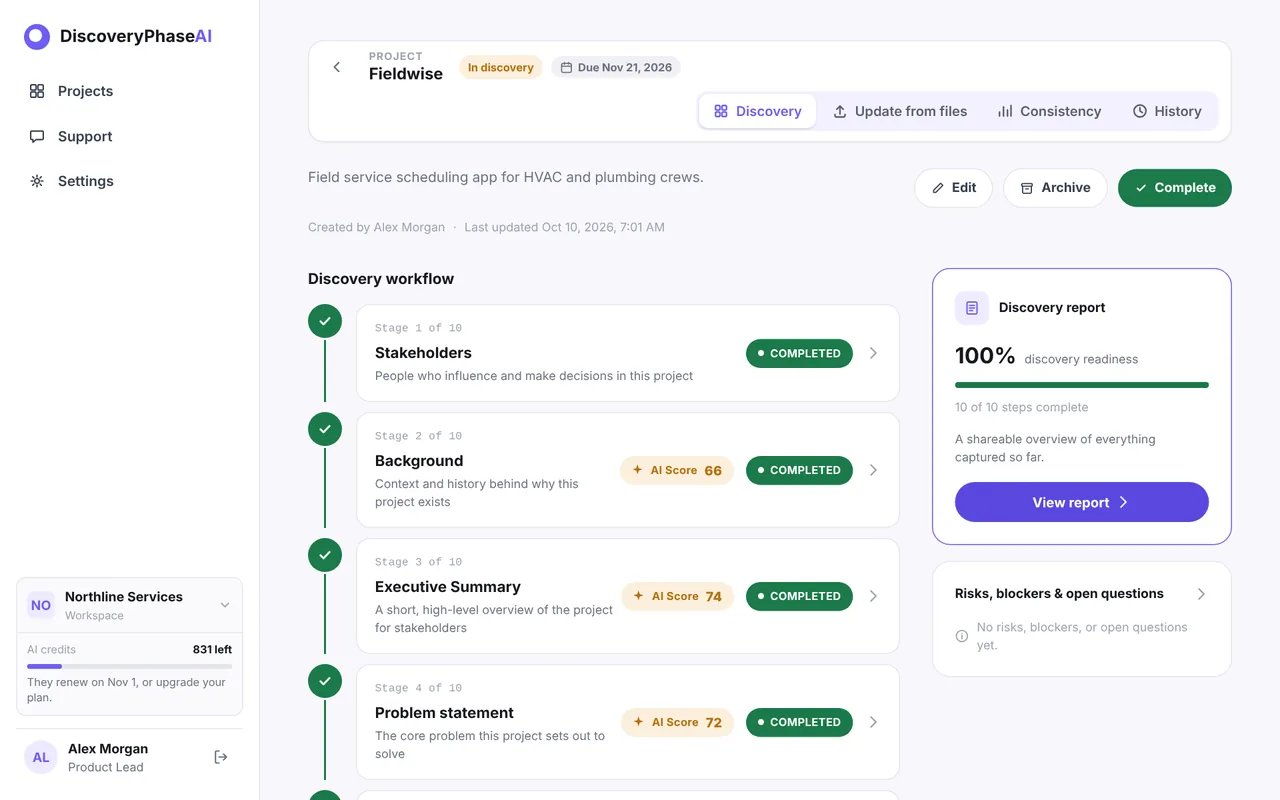
The project page lists the ten discovery stages in order, with the status of each one: Not started, In progress or Completed. The Discovery report card on the right shows readiness, the share of stages you have marked complete.
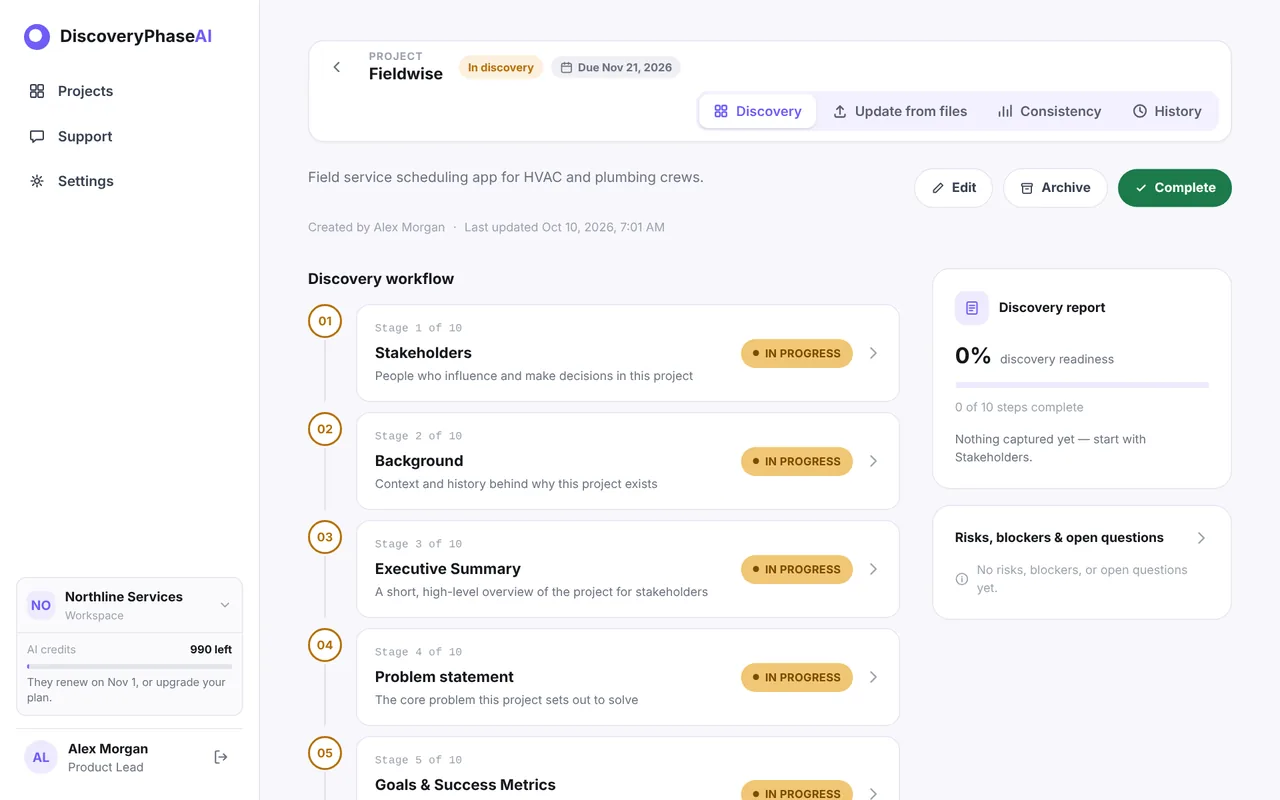
The tabs at the top lead to Update from files (add a new document later), Consistency (open findings across stages) and History (every change, with restore).
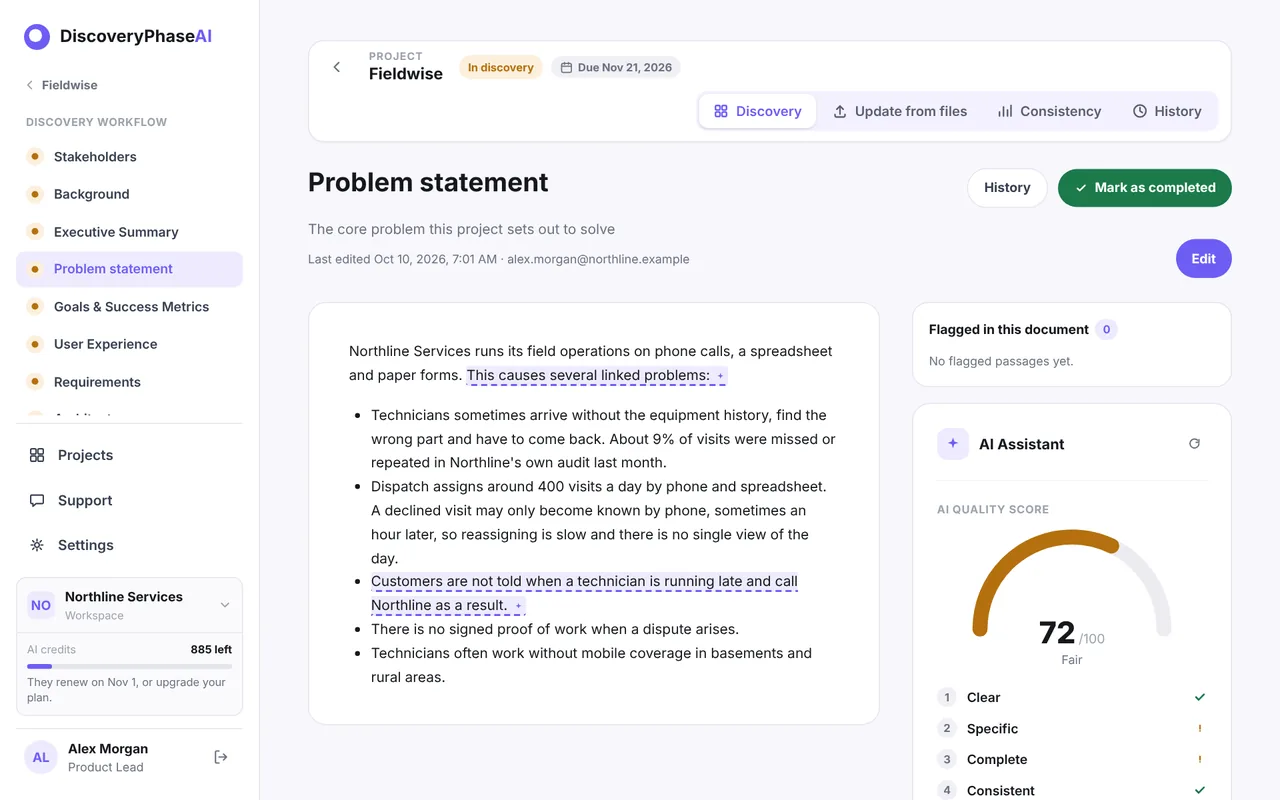
On every stage page the AI Assistant sits on the right. It gives the stage an AI quality score from 0 to 100, rates it on a few criteria (for example Clear, Specific, Complete, Consistent) and lists concrete suggestions. The score reads the other stages too, so it also catches contradictions between them. Improve with AI opens a chat that proposes changes; nothing changes until you click Apply.
4. Stakeholders
Who can approve, block or change the project: name, title, contact details and a short note on what they care about. In Fieldwise the AI found the COO who sponsors the project, the head of field operations, the IT lead, the dispatch supervisor and the customer service manager.
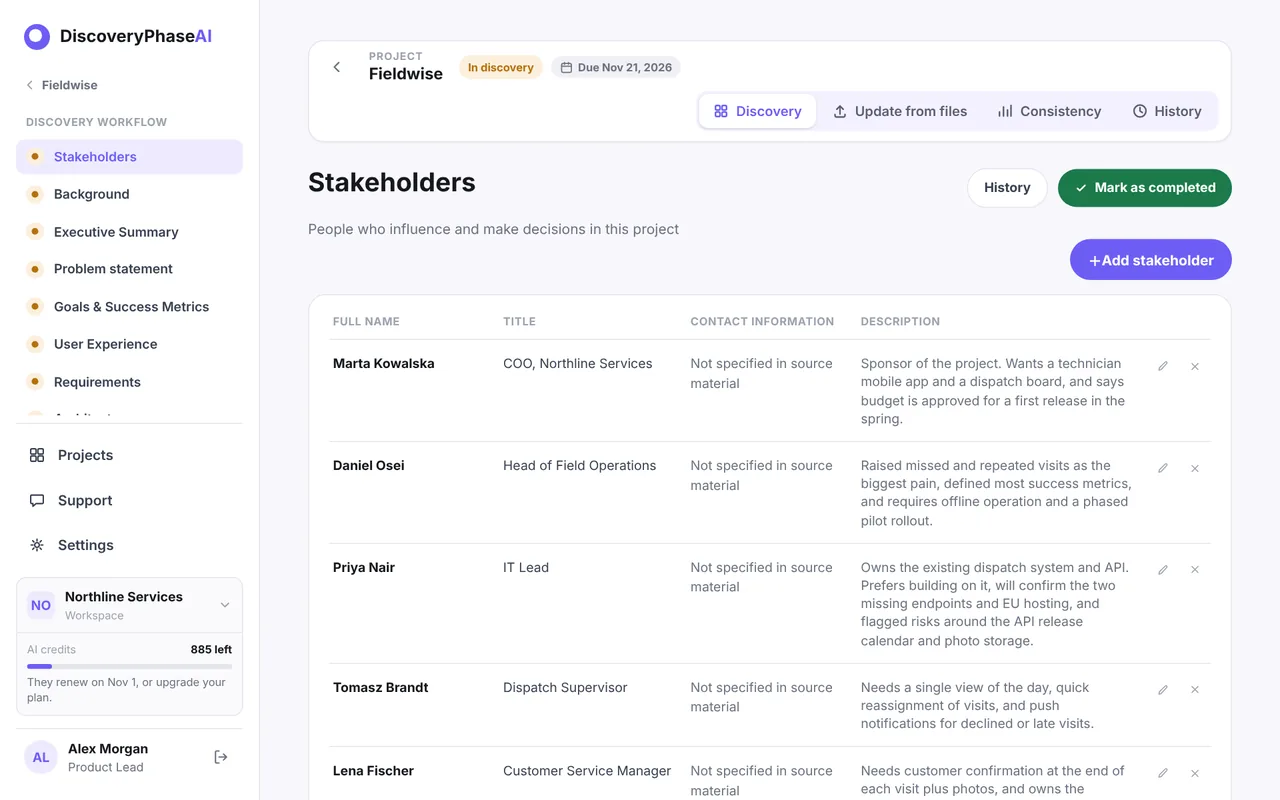
Add people with Add stakeholder, or select text on any stage and flag it as a risk, a blocker or an open question.
5. Background, Executive Summary, Problem statement
Three written documents. Background is the context a new team member needs on day one; the Executive Summary is the one page for people who will not read the rest; the Problem statement says who has the problem, what goes wrong and what it costs.
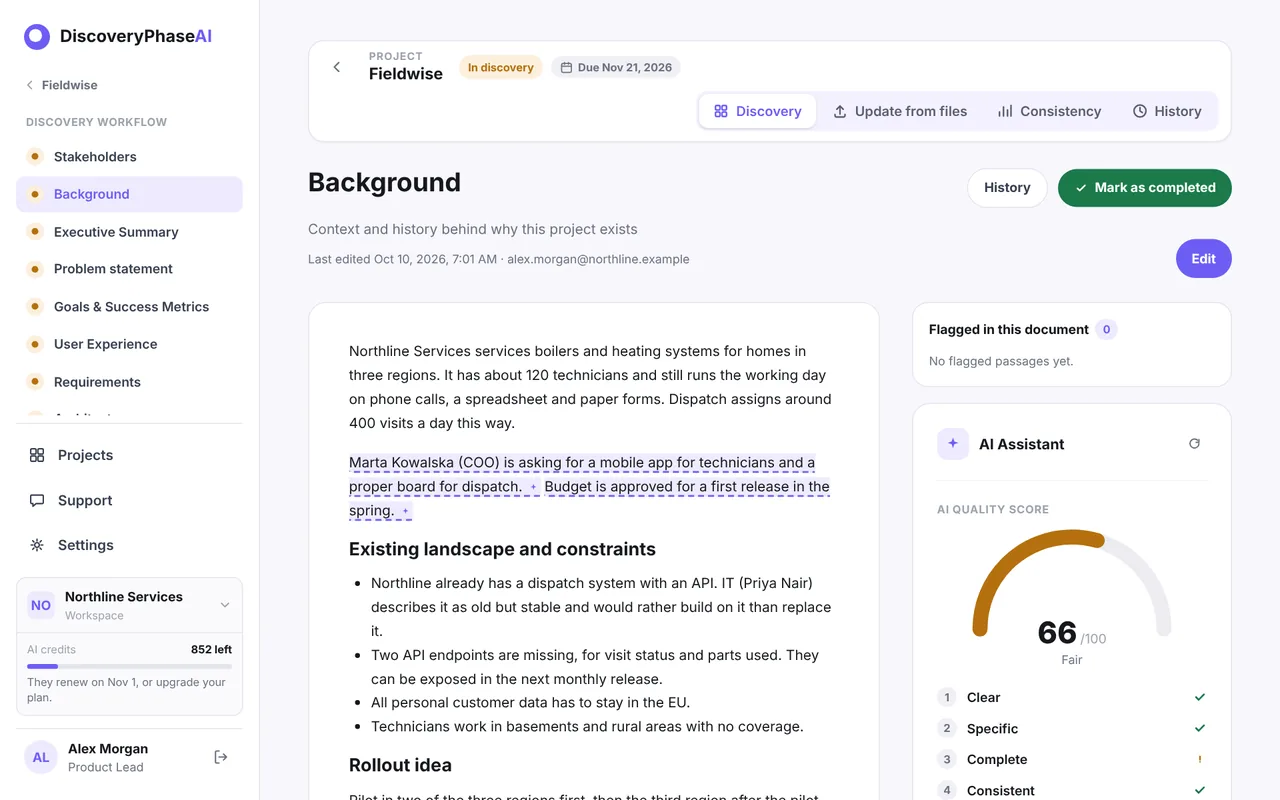
Click Edit to change the text in a rich-text editor. Passages the AI flagged are underlined in the text; the same list shows in Flagged in this document.
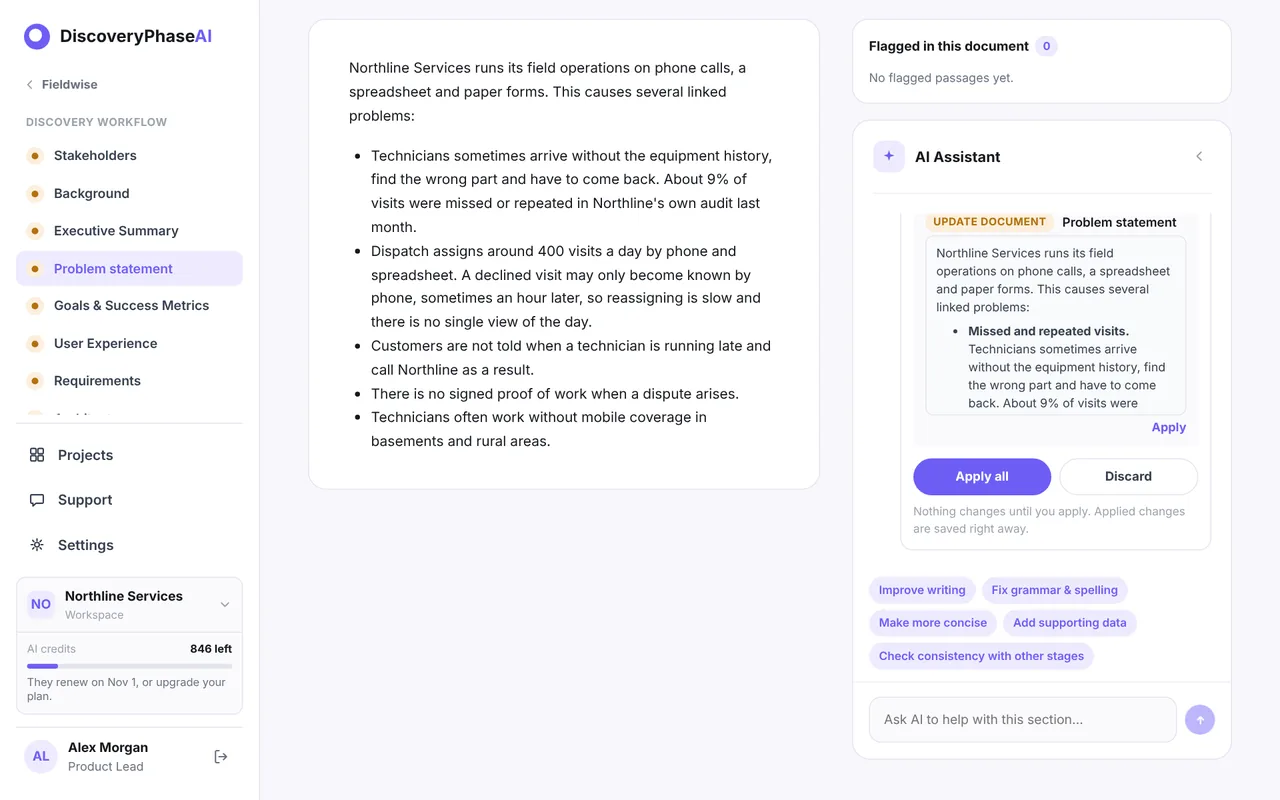
Improve with AI turns the score panel into a chat. Ask for a change in your own words; the AI proposes an edited document, and you apply it or discard it.
6. Goals & Success Metrics
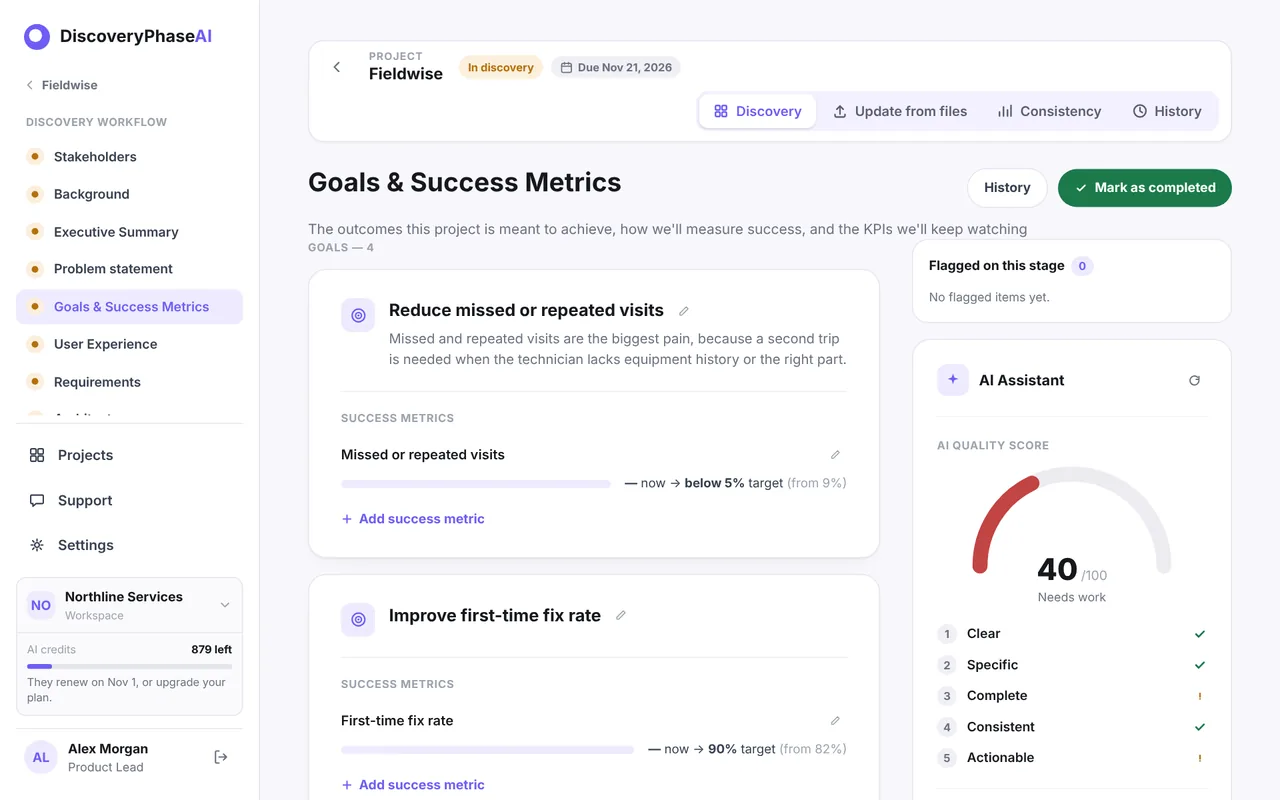
Two or three goals, each with success metrics that have a baseline, a current value, a target and a date, plus the KPIs you will keep watching after launch. Fieldwise aims to cut missed or repeated visits below 5% and raise the first-time fix rate to 90%.
7. User Experience
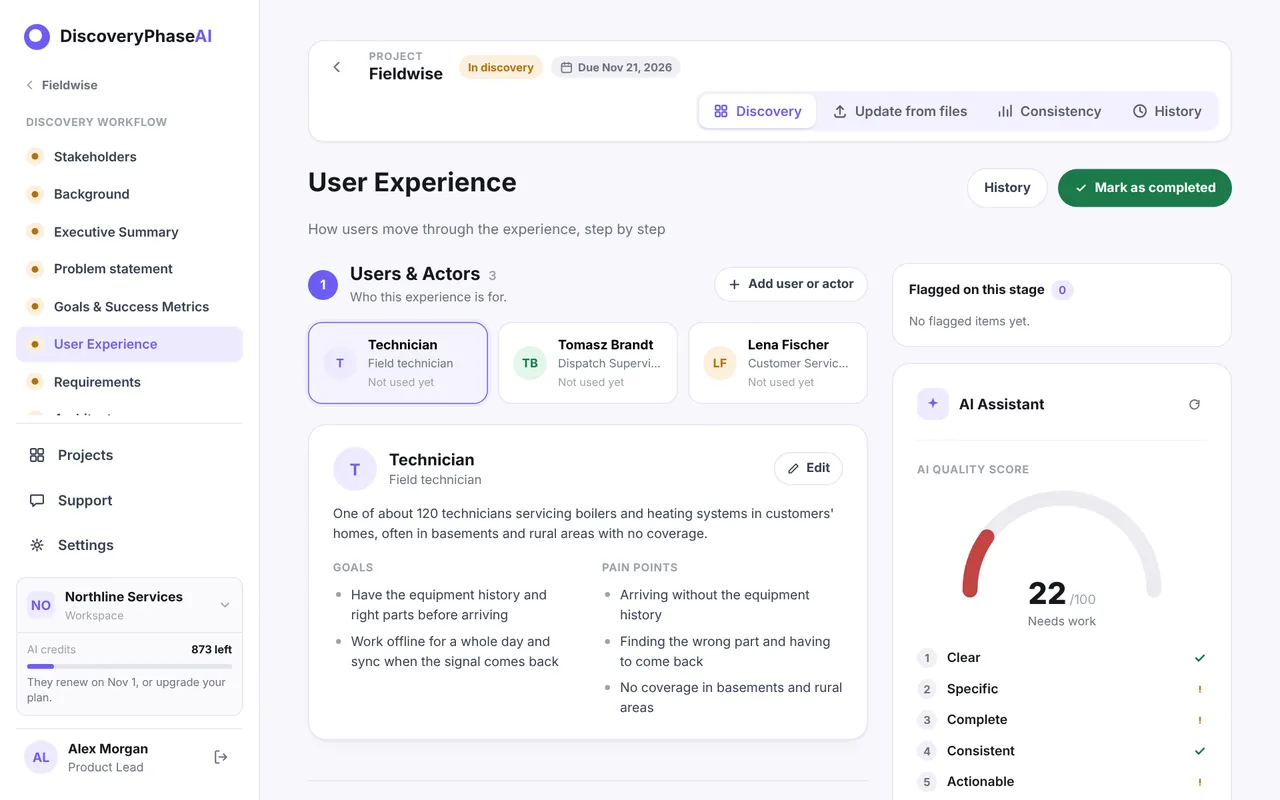
Users and actors with their goals and pain points, journeys made of steps, and flows drawn as diagrams. A journey step can link to a flow, so the path from a user to a screen stays traceable.
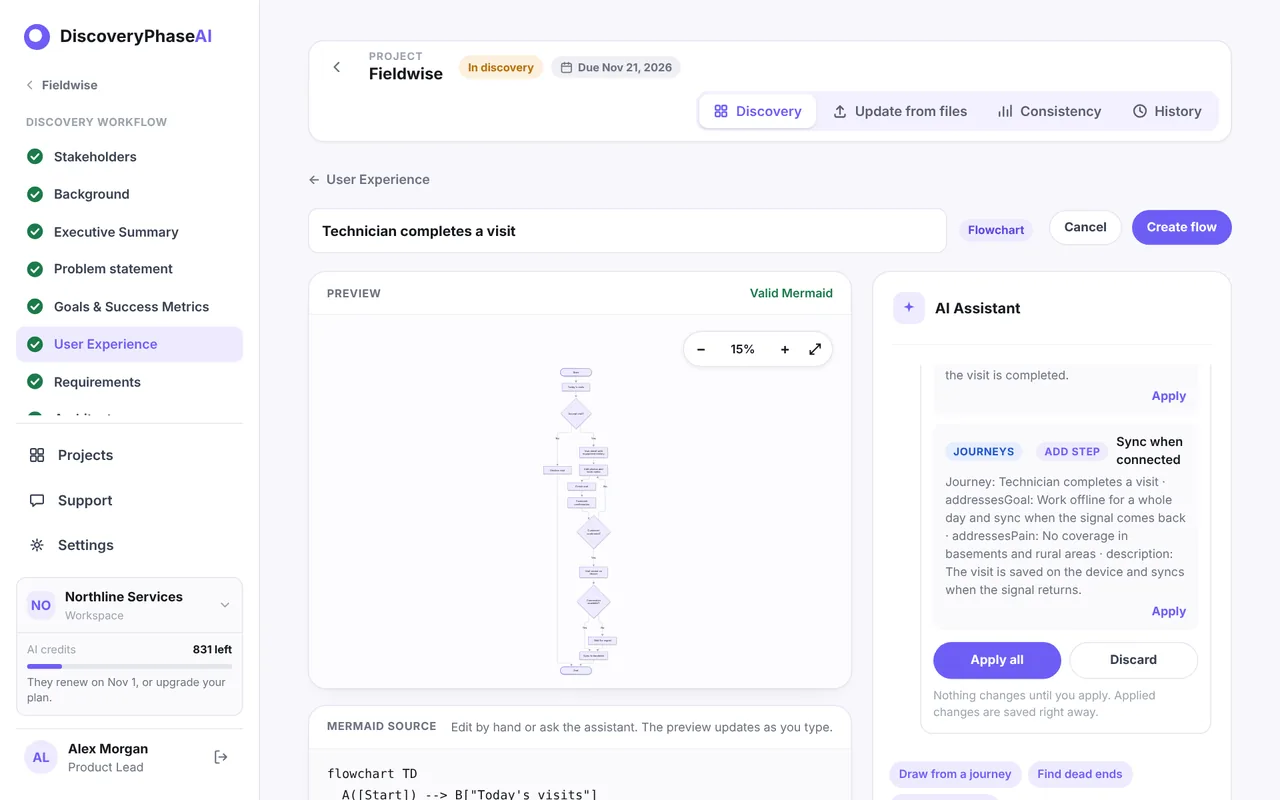
A flow has its own page with a live preview. The diagram is written as Mermaid text, so you (or the AI) can change it as text and see the result at once.
8. Requirements
Each requirement gets an ID (REQ-001, REQ-002…), a type (functional, non-functional or constraint), a MoSCoW priority, a status, a linked goal, an owner and acceptance criteria. The list can be searched, filtered and sorted.
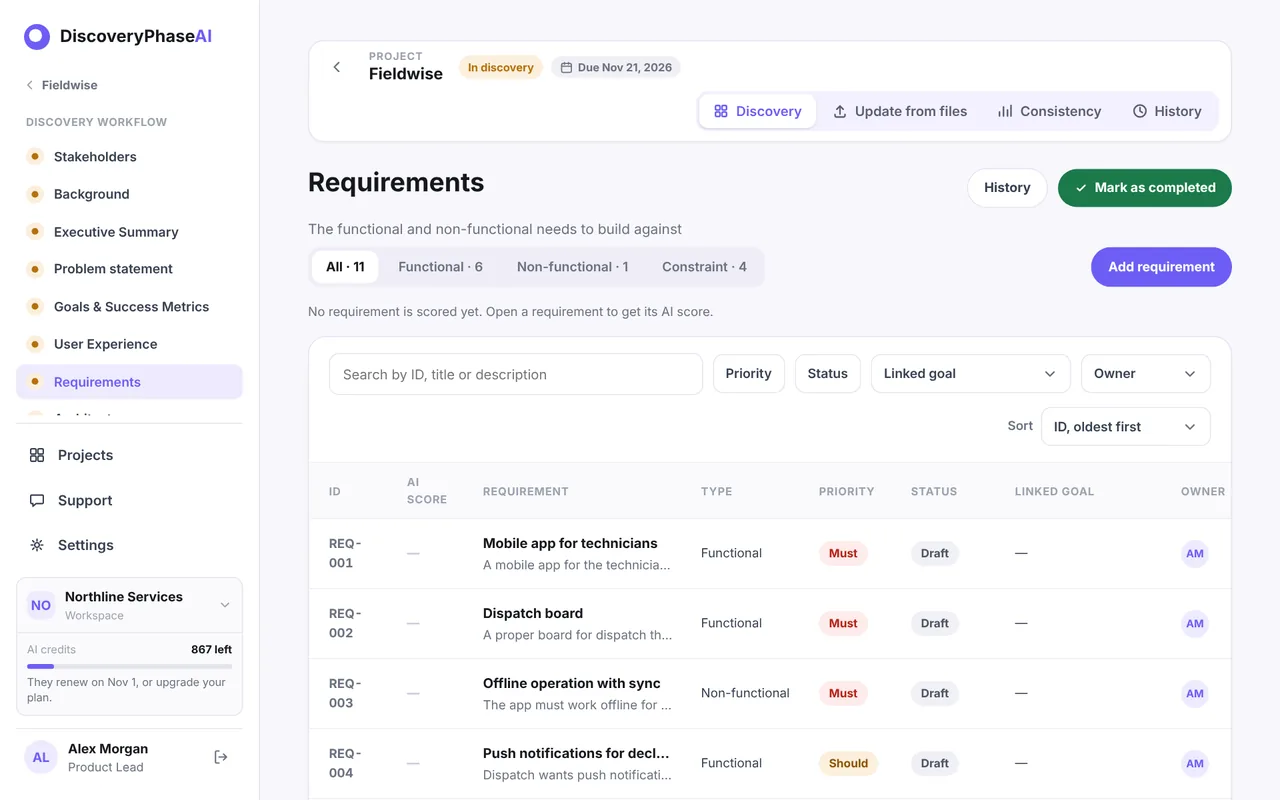
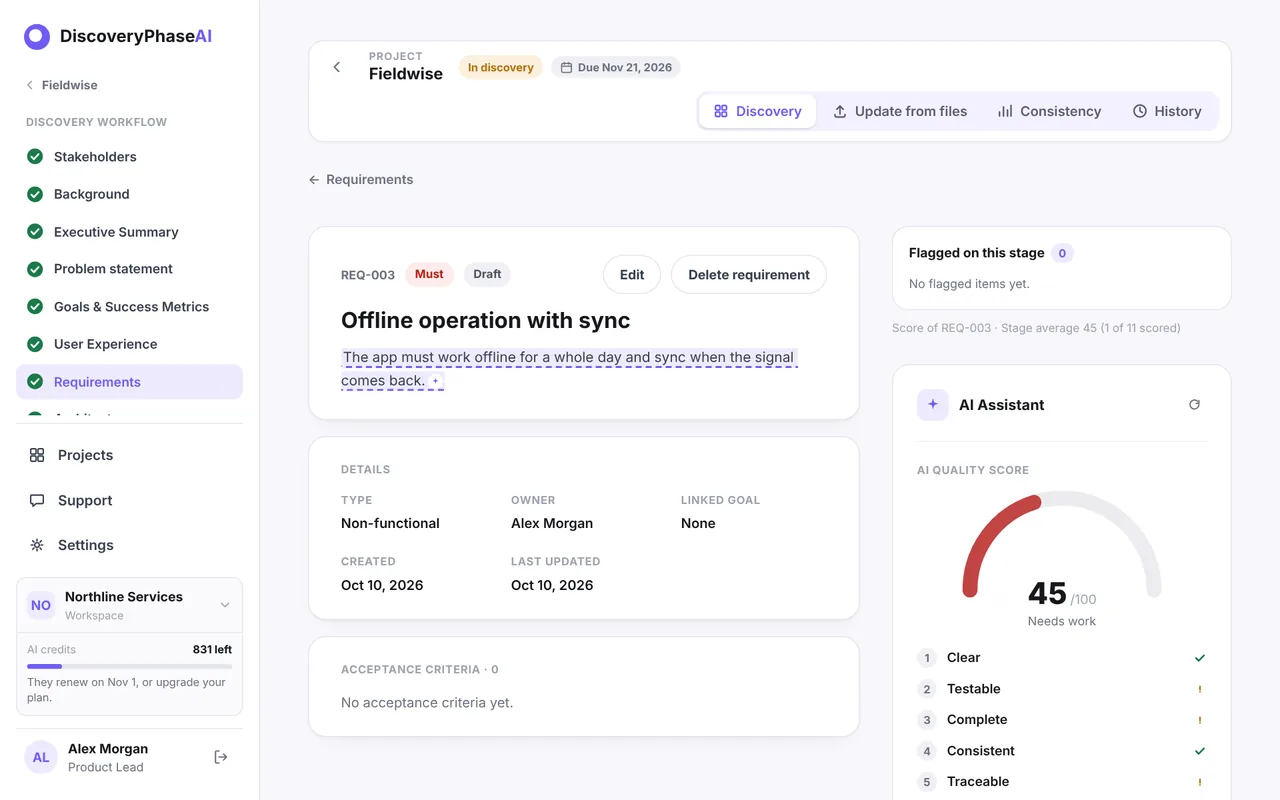
Open a requirement to see its own AI score, rated on five criteria, with suggestions on what makes it hard to build or test.
9. Architecture
Diagrams of the system and architecture decision records (ADR-001, ADR-002…). Start a new diagram and ask the assistant to Draw from requirements: it proposes a diagram, you apply it, check the preview and save.
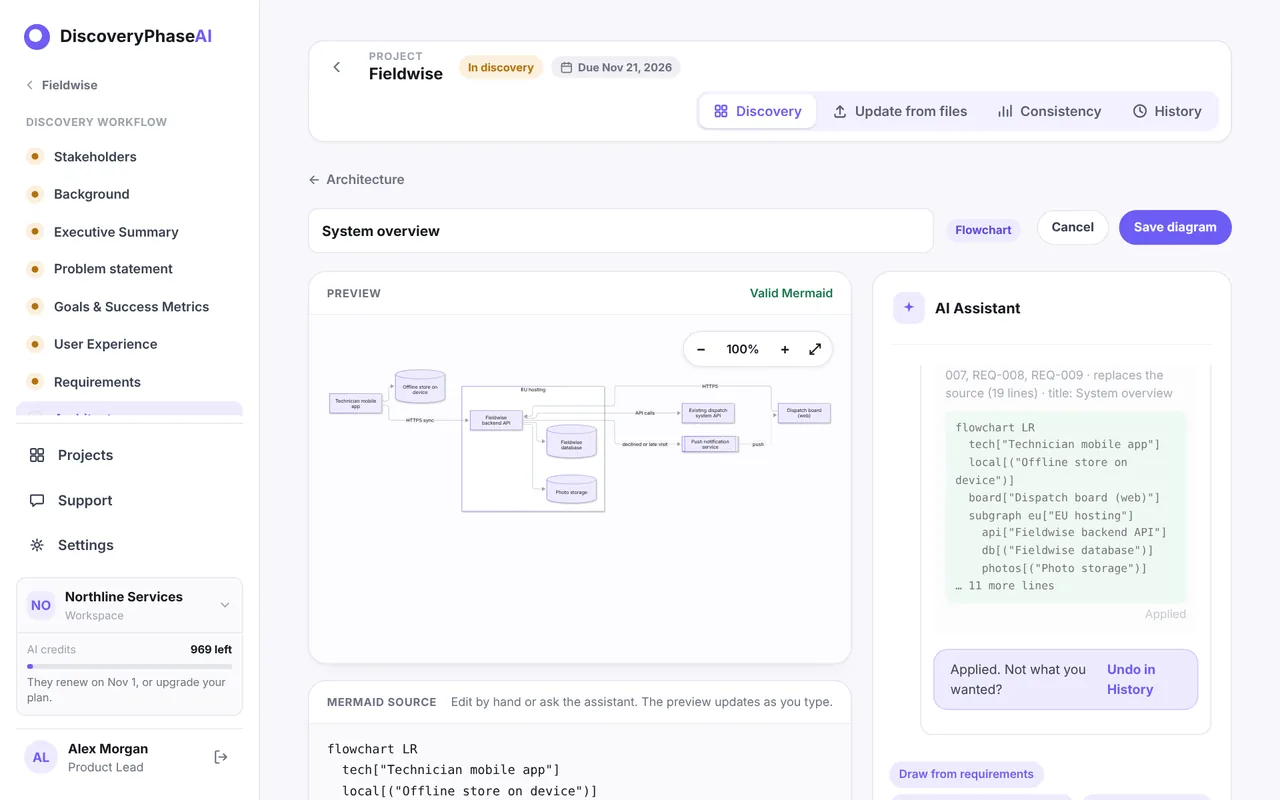
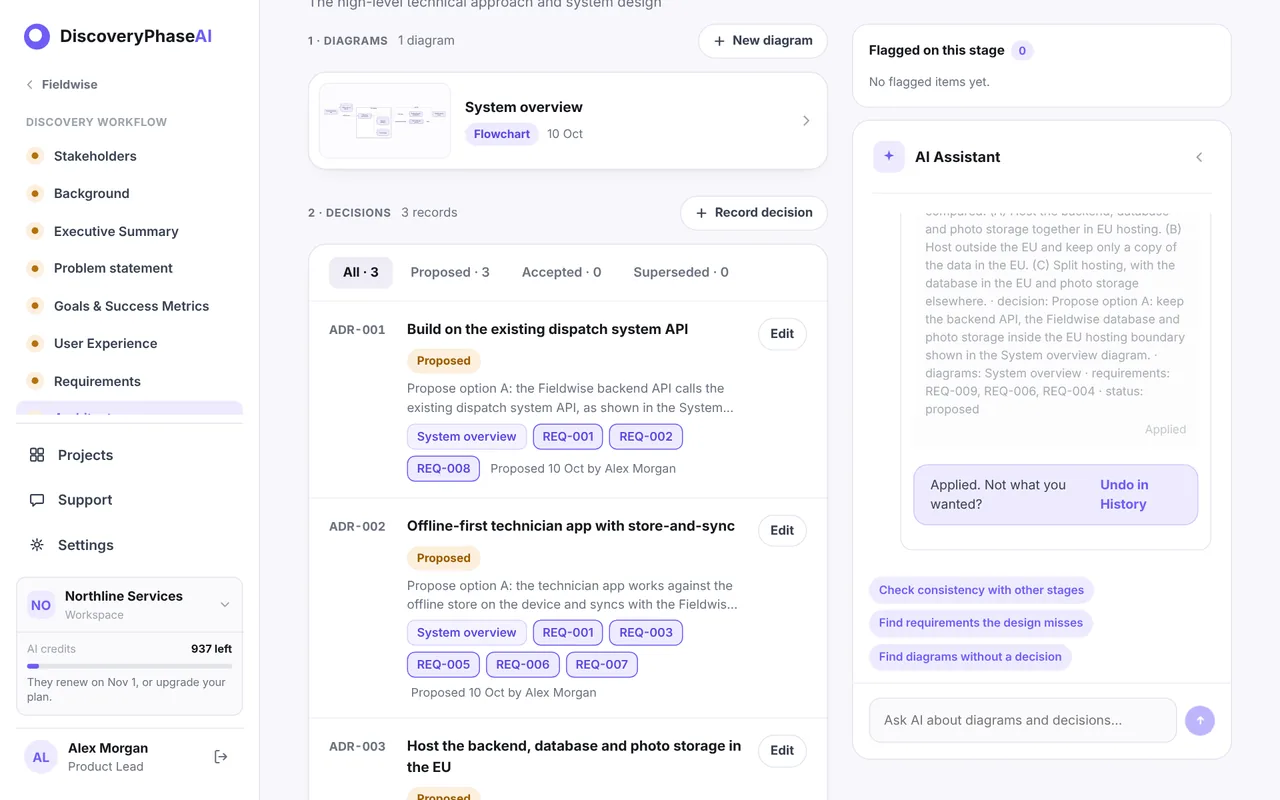
Decisions record the question, the options compared, the choice and its consequences, linked to the diagrams and requirements they affect.
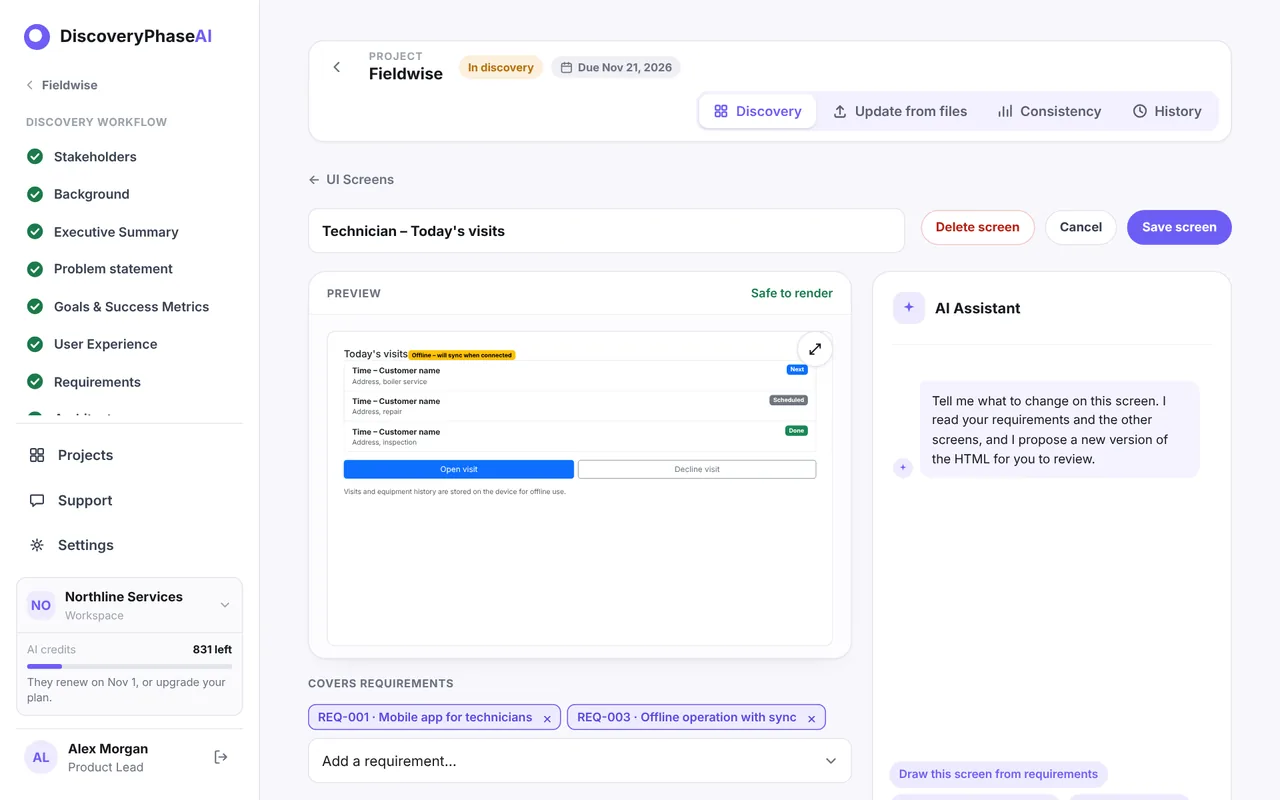
10. UI Screens
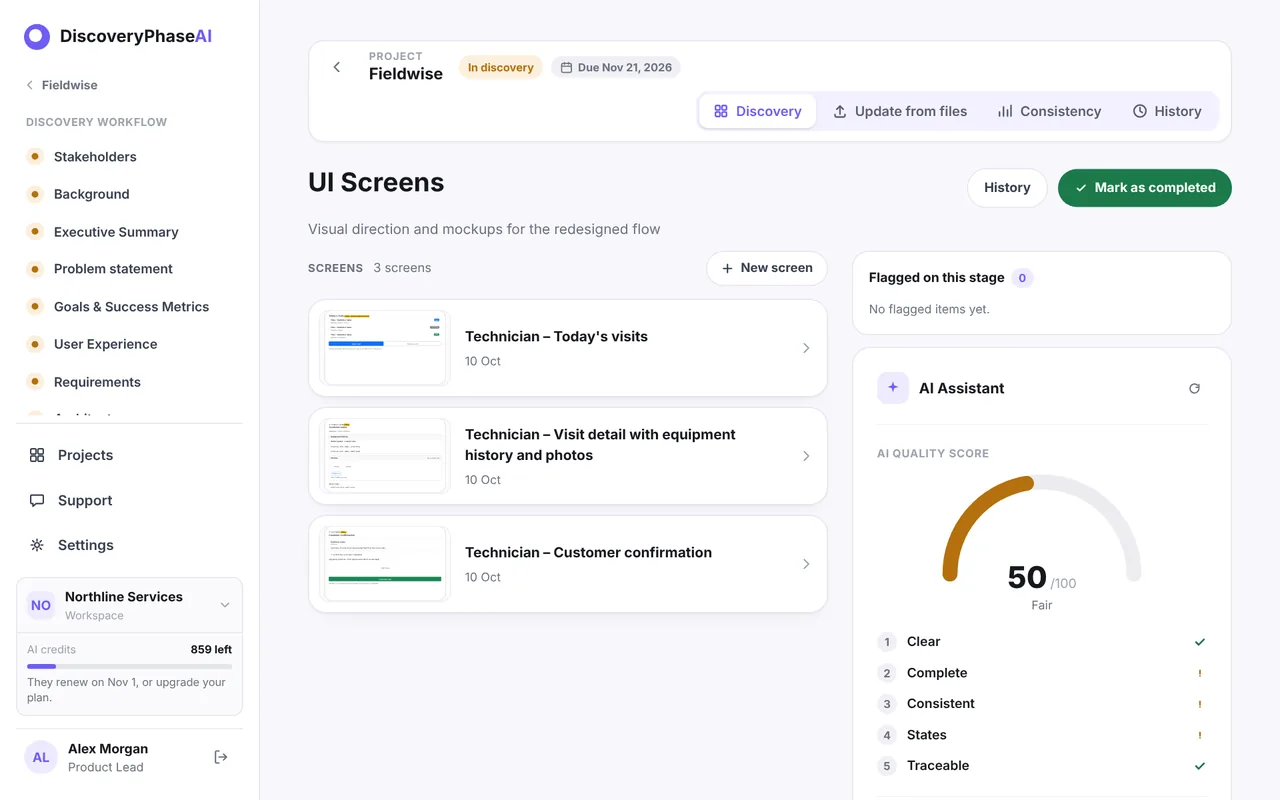
Wireframes of the key screens. Ask the assistant to Draft screens from journeys and requirements, or describe a screen in your own words. Each screen links to the requirements it covers.
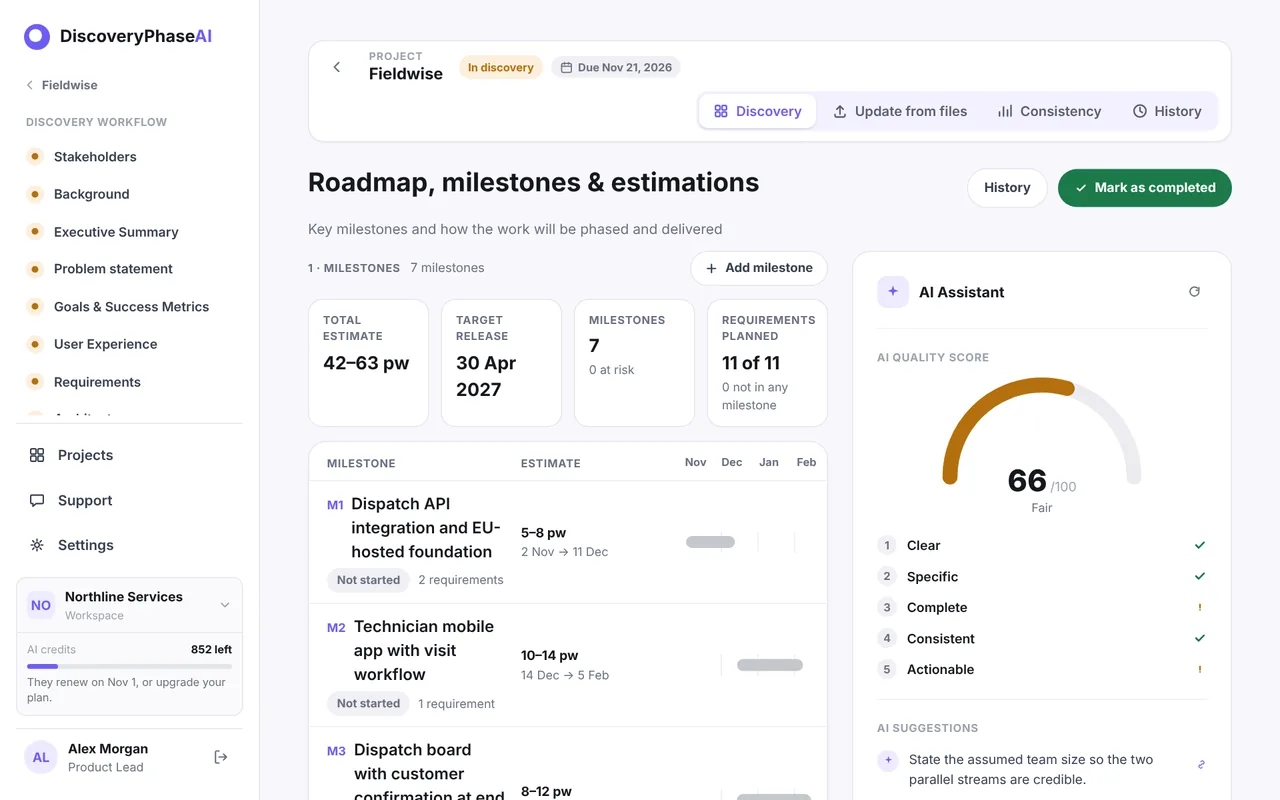
11. Roadmap, milestones & estimations
Milestones with start and target dates, an effort range in person-weeks, dependencies and the requirements each one delivers, plus the assumptions the plan depends on. Click Draft roadmap with AI: the assistant asks for a target release date if it needs one, then proposes the milestones.
12. Mark stages complete and check impact
When a stage is ready, click Mark as completed. Only completed stages appear in the report, and readiness on the project page counts them. Edit a completed stage and it goes back to In Progress.
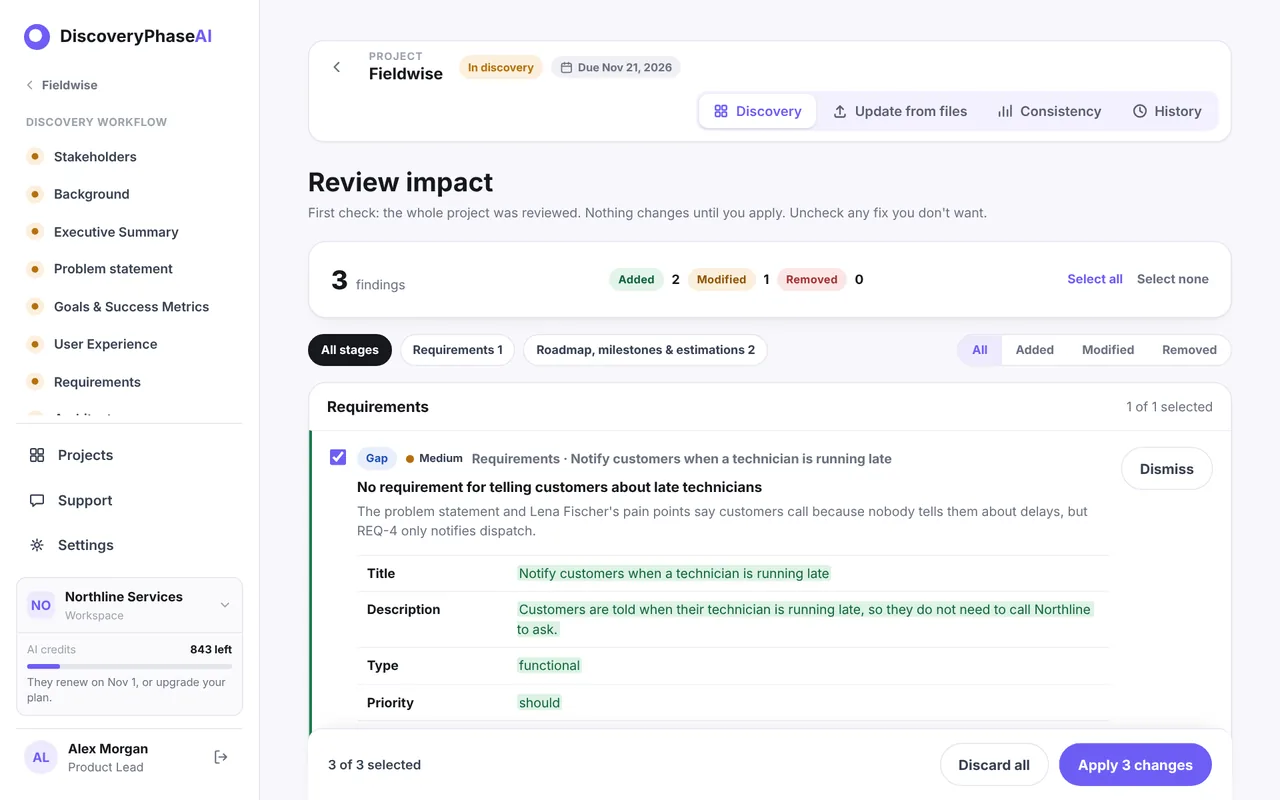
Projects change. Check impact (in the sidebar, and offered before you mark a stage complete) reads the whole project and lists conflicts, outdated content, gaps and broken links between stages, each with a proposed fix you can apply or dismiss.
13. Open and export the report
Discovery report puts every completed stage into one read-only document: stakeholders, the three documents, goals, users and flows, requirements, architecture, screens, the roadmap and any open risks.
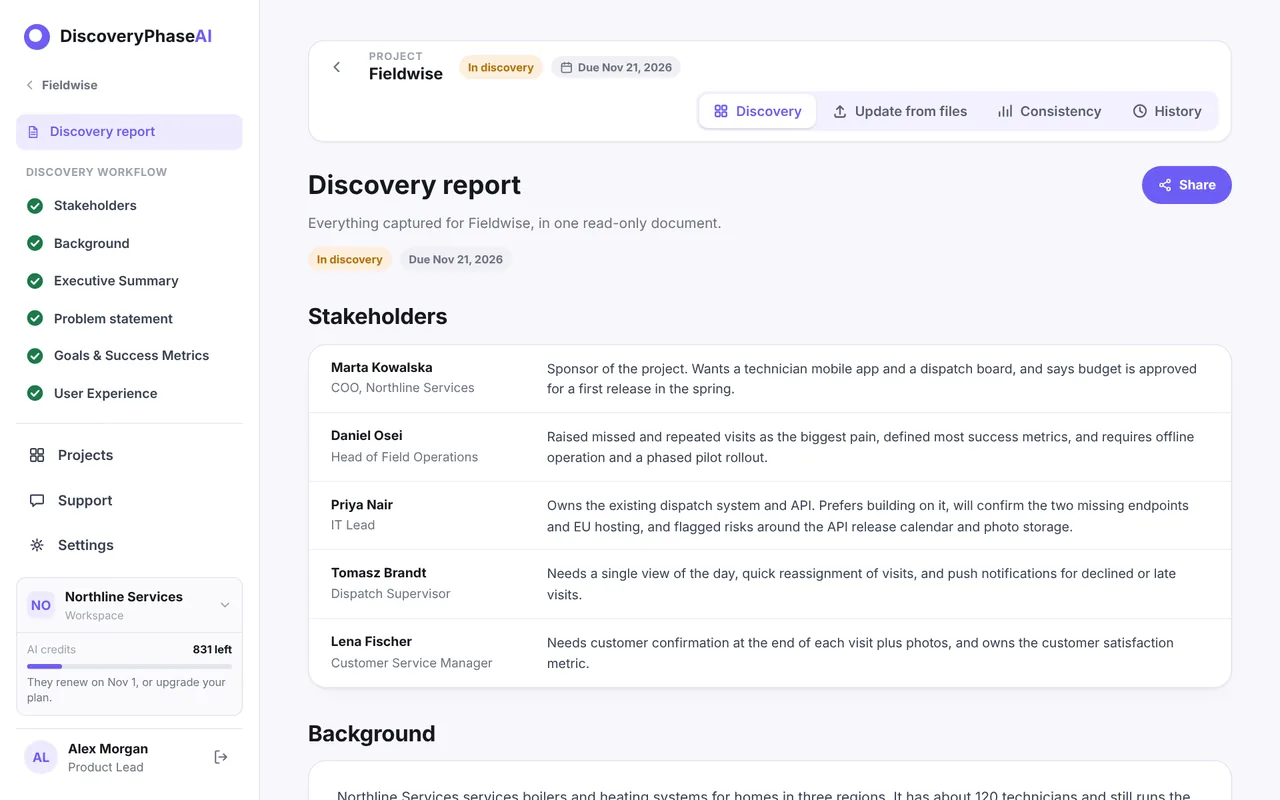
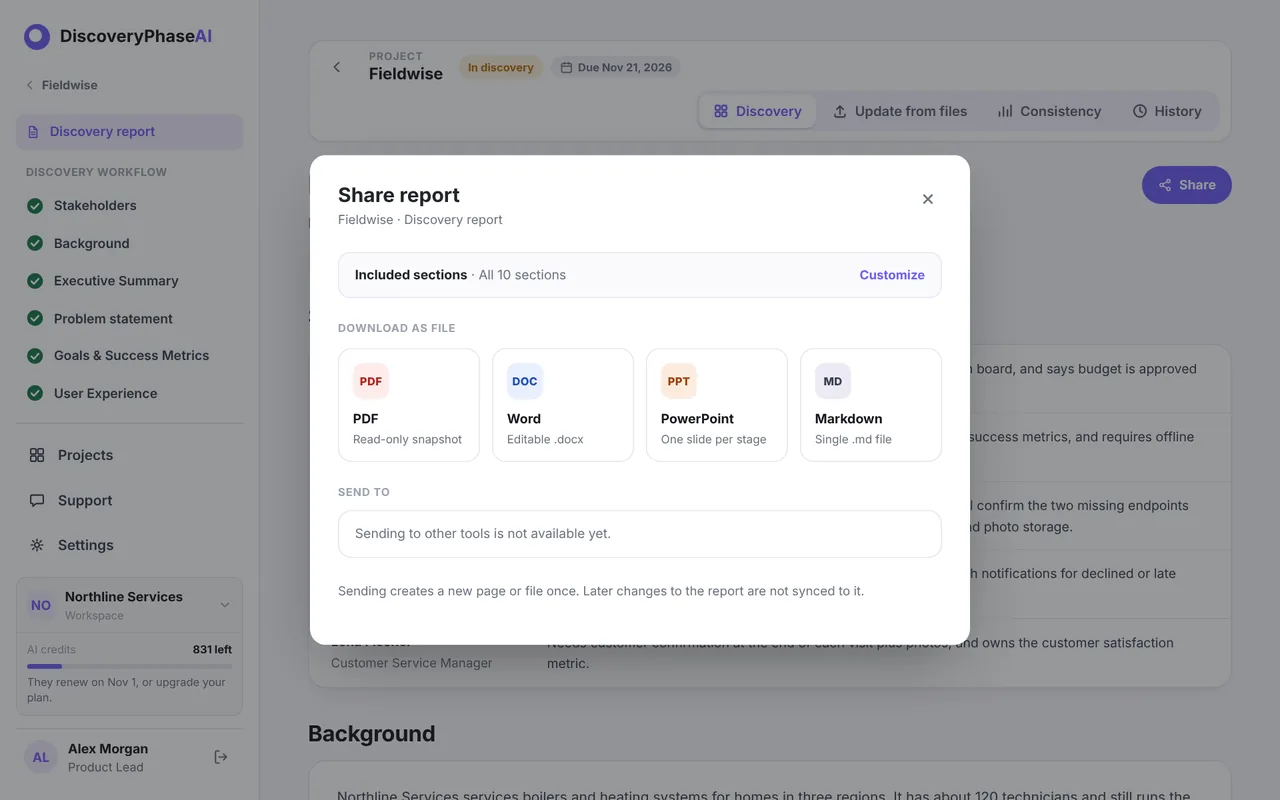
Click Share to download it as PDF, Word, PowerPoint or Markdown. The file is built in your browser. The Free plan exports Markdown; paid plans export all four formats.
To see a finished report without signing up, open the example report.